What is CAD?
CAD (Computer-Aided Design) is software used to create precise 2D drawings and 3D models. CAD is used to design parts, products, buildings, and machines before anything is built, so designs can be tested, revised, and documented.
Free CAD Preview Mission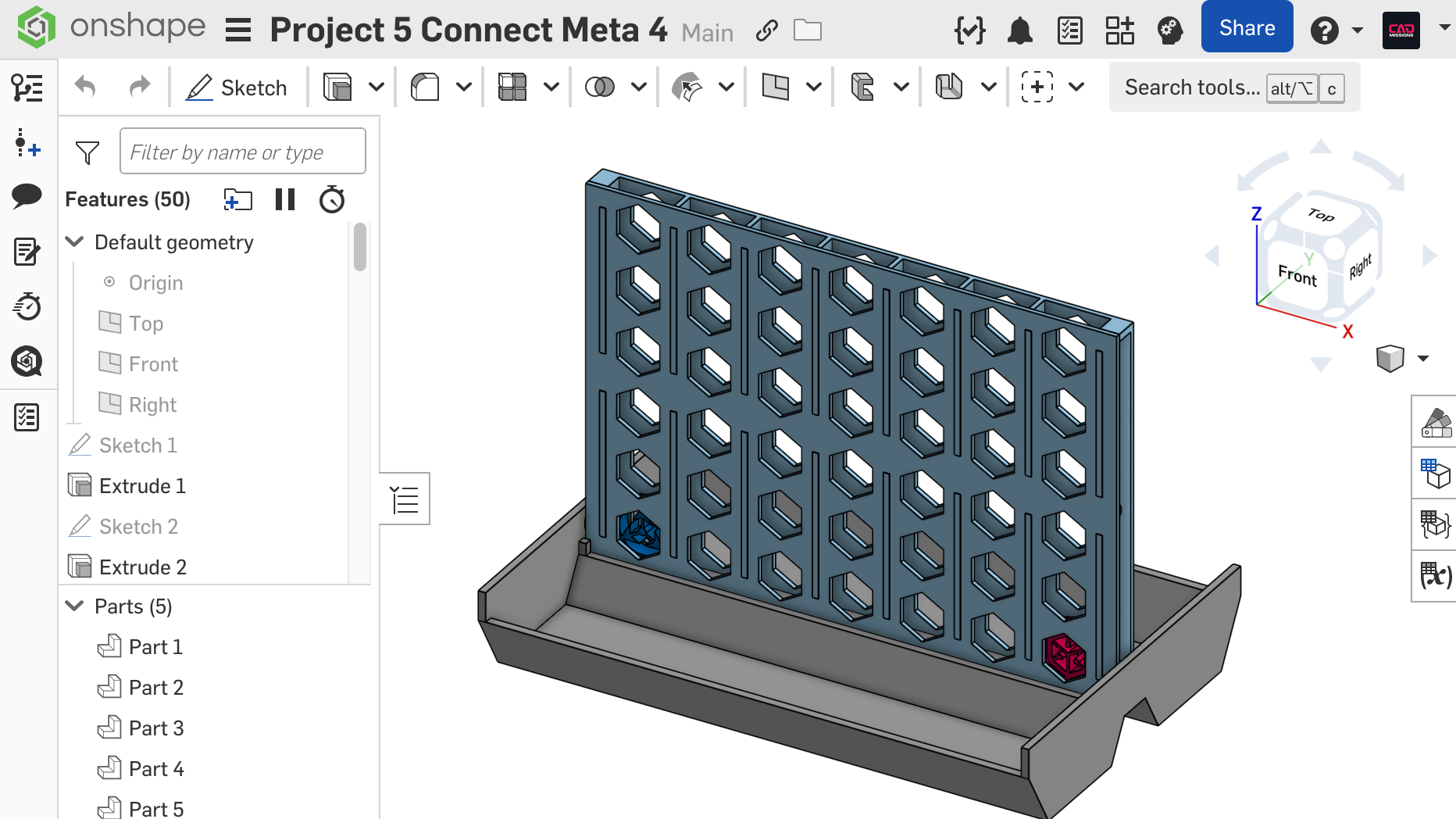
What does CAD Stand for?
CAD stands for Computer-Aided Design. It refers to using software to create and edit design geometry, measurements, and documentation.
What CAD is used for
CAD is used to design and communicate how something should be made. Common uses include:
- Product design: consumer products, tools, accessories, enclosures
- Engineering: mechanical parts, assemblies, mechanisms
- Manufacturing: drawings, tolerances, and machine-ready geometry
- Architecture / construction: building layouts, models, documentation
- 3D printing: printable models exported as STL/3MF
What’s the difference between 2D CAD and 3D CAD?
2D CAD is used for flat drawings (plans, layouts, technical drawings).
3D CAD is used to create solid models that can be viewed from any angle, assembled, measured, and exported for manufacturing or 3D printing.
Most modern CAD learning paths start with 3D CAD, then teach drawings as the documentation step.
What skills do you learn in CAD?
A strong CAD foundation usually includes:
- Sketching + constraints: creating controlled geometry that stays editable
- Dimensions + design intent: models that update correctly when edited
- Solid features: extrude, revolve, sweep, loft, shell, fillet/chamfer
- Patterns + mirrors: repeatable, clean feature workflows
- Assemblies: putting parts together and checking fit/motion
- Drawings: views, dimensions, and documentation
- Export + fabrication readiness: STL/3MF for printing, PDFs for drawings
Who uses CAD?
CAD is used by engineers, designers, architects, makers, and manufacturing teams. For students, CAD builds practical skills in:
- spatial reasoning
- problem-solving
- iterative design
- precision and measurement
- project completion (from idea → model → final output)
What CAD software should you learn?
It depends on goals and environment:
- For students and classrooms: browser-based CAD is often easiest to deploy (no installs, works on many devices).
- For makers and 3D printing: a workflow that supports clean exports and design iteration matters more than fancy tools.
- For industry preparation: learning a parametric CAD workflow is the priority (constraints, design intent, assemblies, drawings).
CAD Missions uses Onshape, a browser-based CAD platform, so learners can start quickly and work from most computers.
Is CAD hard to learn?
CAD feels hard when learners jump straight into complex projects without a skill sequence. It becomes manageable when learning is broken into:
- a single skill at a time
- short practice challenges
- periodic projects that combine skills
That sequence is how strong CAD users are built—by doing, editing, and finishing designs.
How do you learn CAD step by step?
A practical progression looks like this:
- Level 1–2: navigation, sketching, constraints, basic solids
- Level 3–4: more complex features and multi-part thinking
- Level 5–6: drawings, tolerances, design for 3D printing
- Level 7–9: multi-part workflows, validation, portfolio-quality work
Learn CAD with a mission-based curriculum
CAD Missions teaches CAD through short missions (skill-focused challenges) and recap projects (multi-skill builds). It’s designed for students and independent learners who want visible progress and finished work, not just videos.
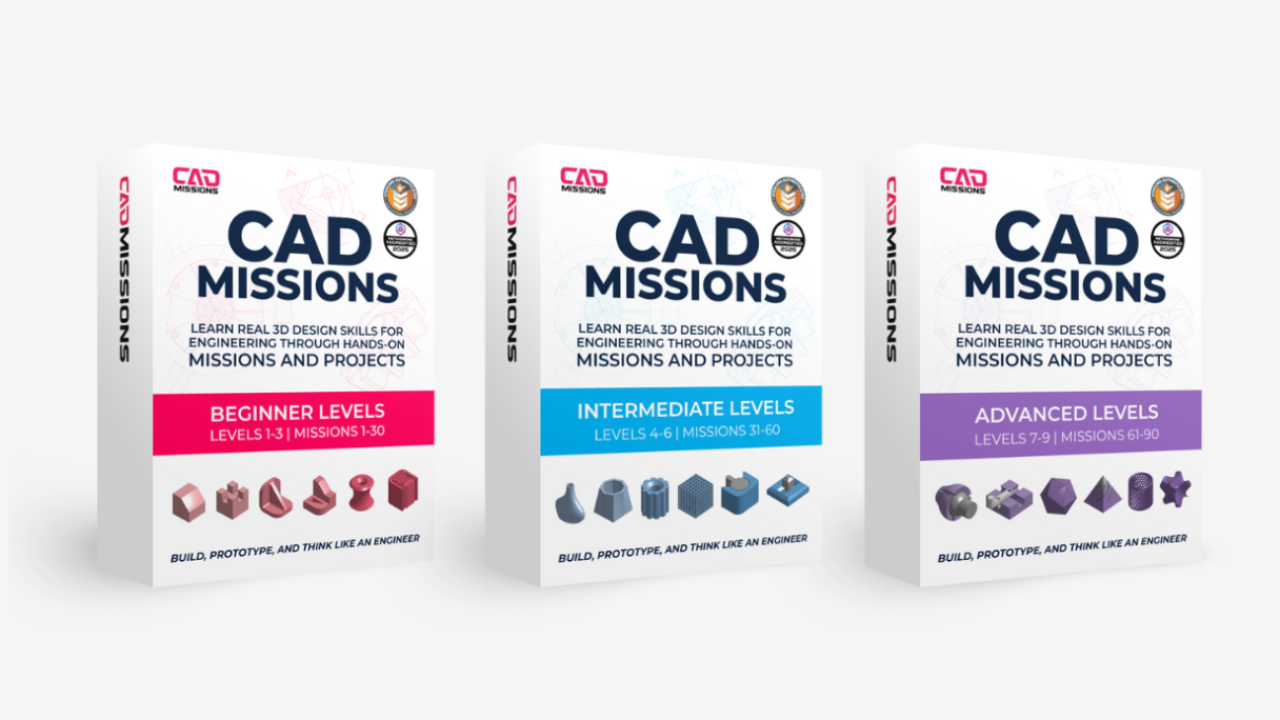
CAD Missions Full Curriculum
Includes 14-day satisfaction guarantee.
$599.00 USD
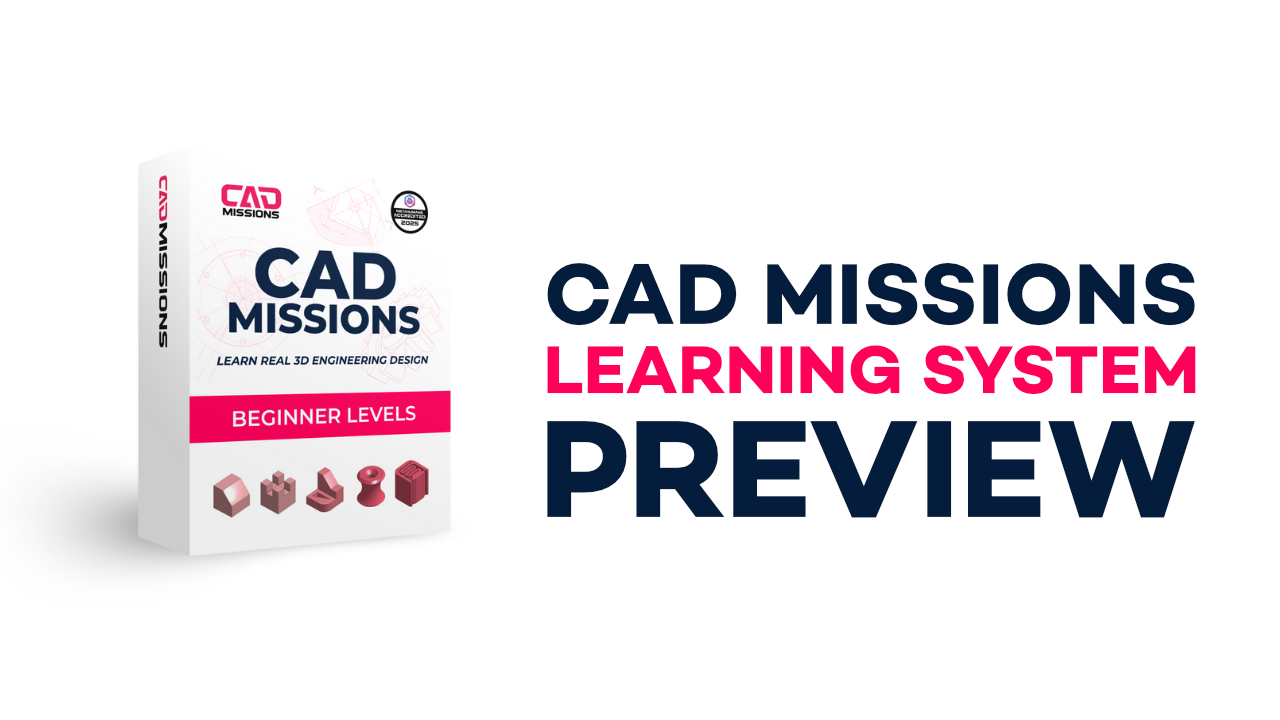
CAD Missions Preview
A short introduction and sample mission that lets you experience the CAD Missions learning system before choosing a path.